
 Deutschland
 España
 France
 Italia
 usa













YOUR PROJECT, YOUR QUOTATION
From your basket to a PDF quotation in a few clicks
Planning an event or preparing a budget for your business, club or organisation? Choose your Europaband products, add them to your basket and create a quotation to save or share with the person approving your budget.
You can get a quotation without creating an account. This illustrated guide takes you from choosing your items to obtaining your PDF.
How to create your quotation online
There are three simple steps: choose your products, check your basket and create your quotation. Use the document to plan your event budget and share your selection with your team.
1. Choose and configure your products
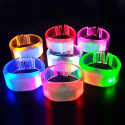
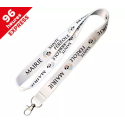
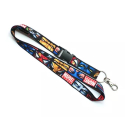
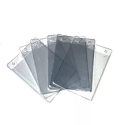
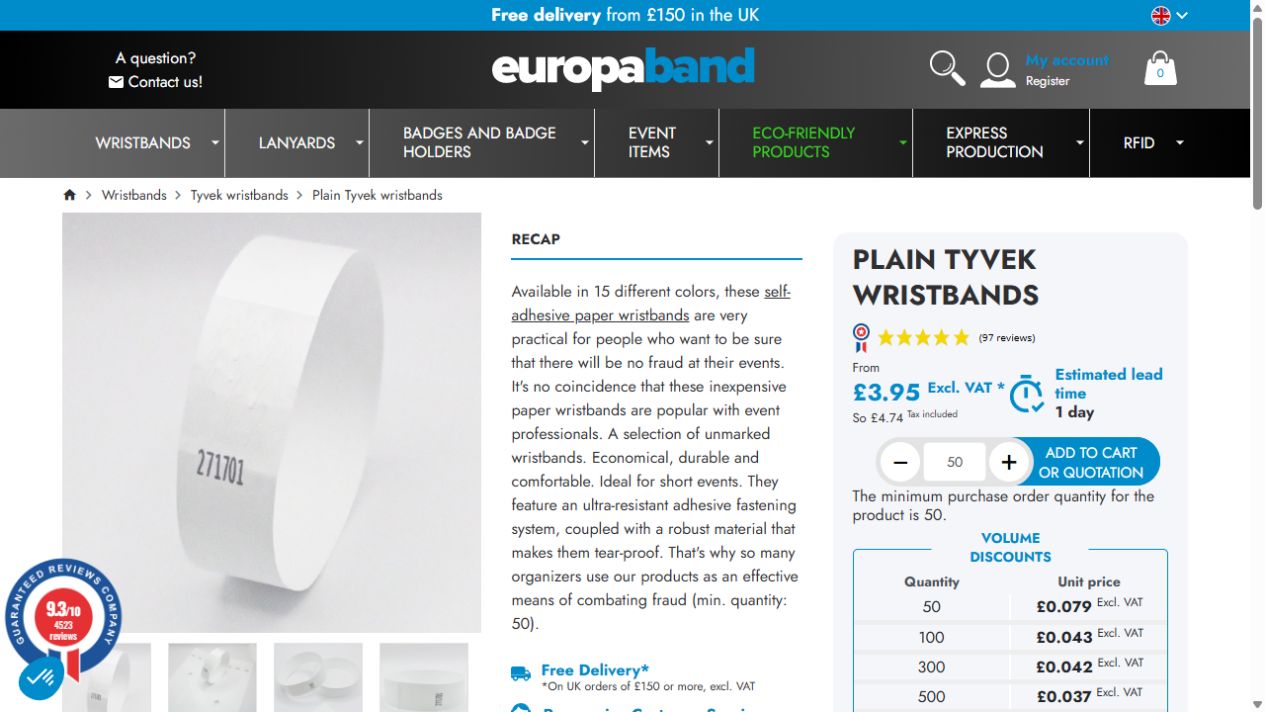
Open the product page for the wristbands, lanyards, badges or other event items you need. Select the quantity, colours, sizes and available options that suit your project.
For personalised items, prepare your logo or text in the configurator and select the relevant personalisation options. Click “Add to cart or quotation”. You can continue shopping to include several products in the same quotation.
Available options and minimum quantities vary by product. The example shows an unprinted item.
2. Check your basket and select “create quotation”
Open your basket and review the products, quantities, variants and personalisation. Adjust your selection if necessary before creating the document.
Click “create quotation” beside the basket summary. Your quotation uses the items and quantities currently in your basket.
The total depends on your products, quantities and selected options.
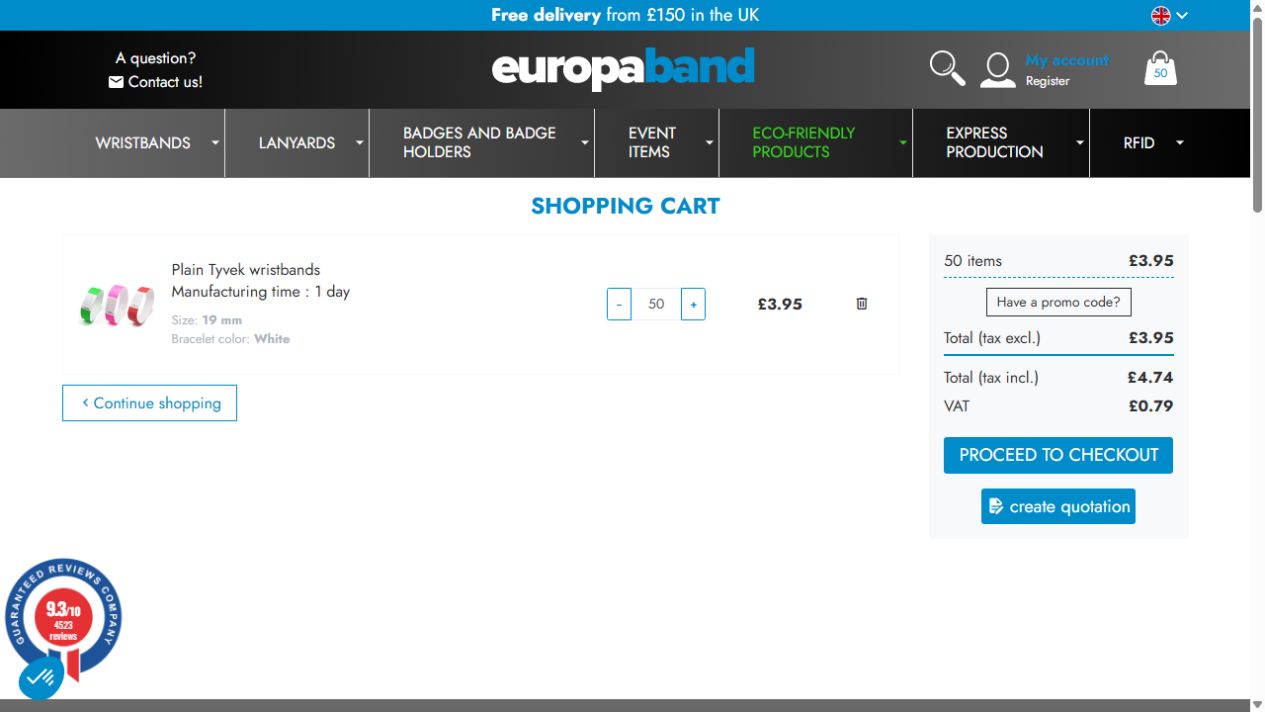
3. Enter your details and get your PDF
The window offers two options. Under “Quotation without account”, enter the details you want to appear on the document: your name or organisation name, address and any useful reference for your team.
Check your details, then click “Get my quotation”. If you prefer to use your customer account, select “Quotation with an account” and follow the instructions on the website.
Save the PDF to your device. You can then print it or send it to the person who needs to approve the budget.
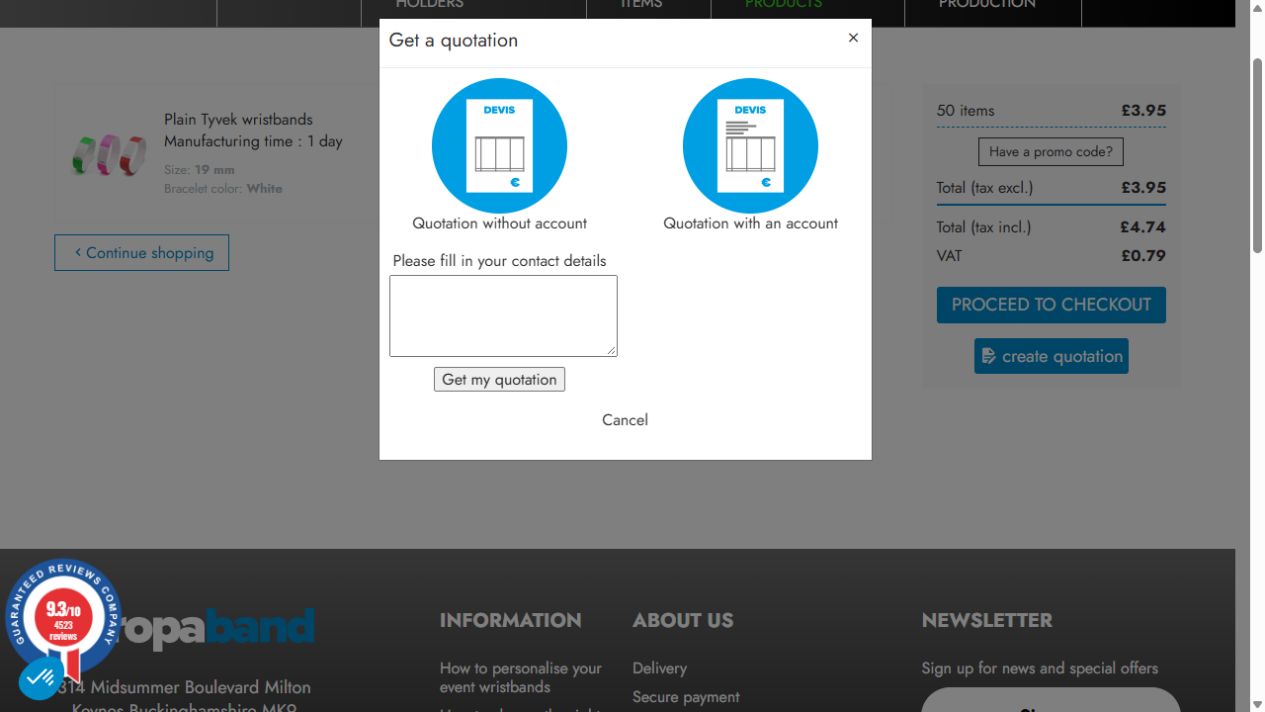
What to check before creating your quotation
- Quantities: check the number of items and the minimum order quantity on each product page.
- Variants and options: review sizes, colours, finishes and personalisation.
- Recipient details: enter the correct name and address, especially when a business or organisation needs to approve the document.
- Totals: review the amounts excluding and including VAT, as well as any delivery costs shown, before using the quotation.
Frequently asked questions about Europaband quotations
Do I need to create an account?
No. The window includes “Quotation without account”. If you already have an account and would like to use it, select the account option.
Can I include several products?
Yes. Add all the items you need to your basket before creating the quotation, and check the quantity and options for each line.
Does creating a quotation place an order or take payment?
Downloading a quotation does not trigger a payment. The document helps you prepare and share your budget. To purchase your items, you will then need to complete the normal checkout process.
How do I change my quotation?
Return to your basket, update the products, quantities or options and create a new document. This keeps the quotation consistent with your updated project.
Where can I find the downloaded PDF?
Check your browser downloads or the Downloads folder on your device. Rename the file if this makes it easier to find later.
What if I have a specific request?
For a particular design, a deadline or help with the configurator, contact our team with your products, quantities and event date.
Ready to plan your project?
Add your products to the basket and turn them into your quotation.